To connect a Salla store to SyncMe, you install the SyncMe app from the Salla App Store, approve its permissions, and enter the email of your SyncMe account. Once the channel shows Connected, you can import your catalog, link products by SKU and keep stock in sync with your other channels, such as Noon, Amazon, Zid or Shopify.
This guide follows the steps in our knowledge base, with a screenshot for each one, then covers what syncs, what to do after connecting, and how to fix the most common problems.
Full documentation: Connecting Salla Store in the SyncMe knowledge base.
Before you start
How to connect your Salla store, step by step
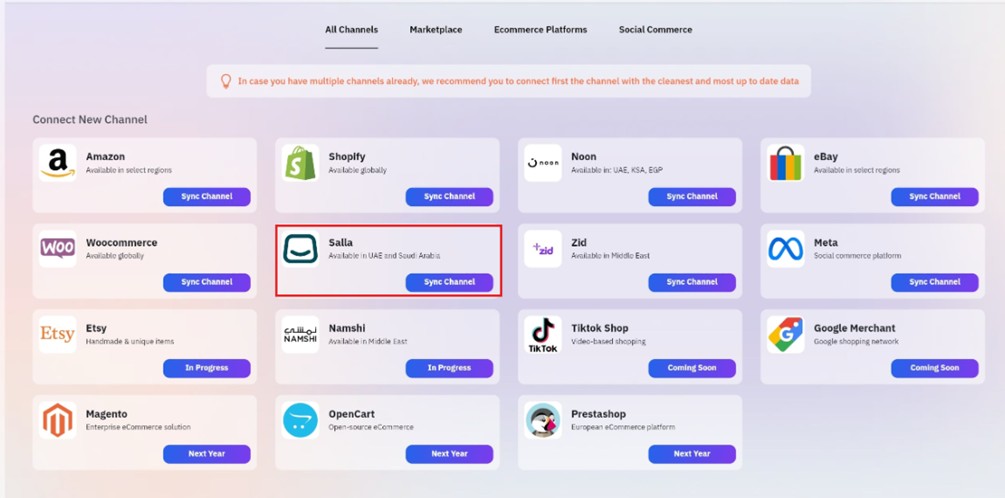
Step 1: Select Salla from Sync Channels
In SyncMe, open Sync Channels from the left menu, find Salla and click Sync Channel.
Step 2: Open the Connect Salla page
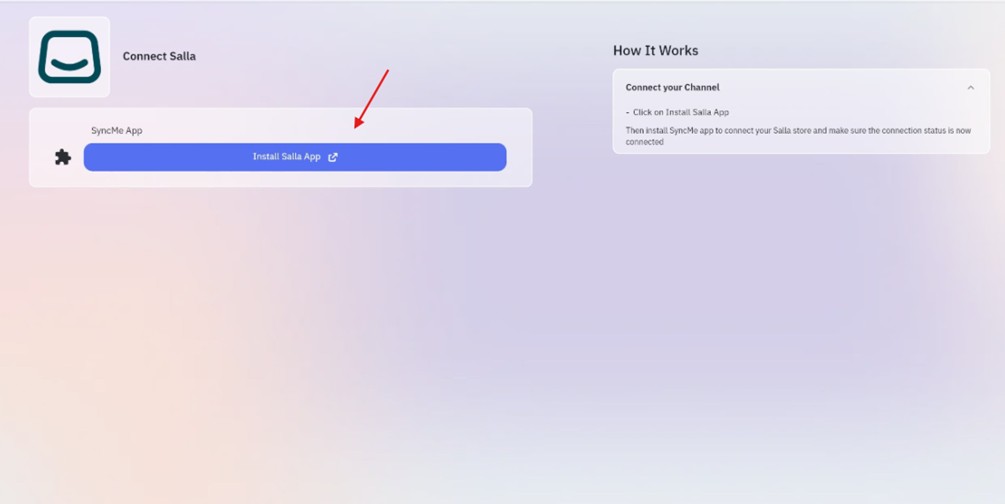
The Connect Salla page opens. Click Install Salla App to continue to the Salla App Store.
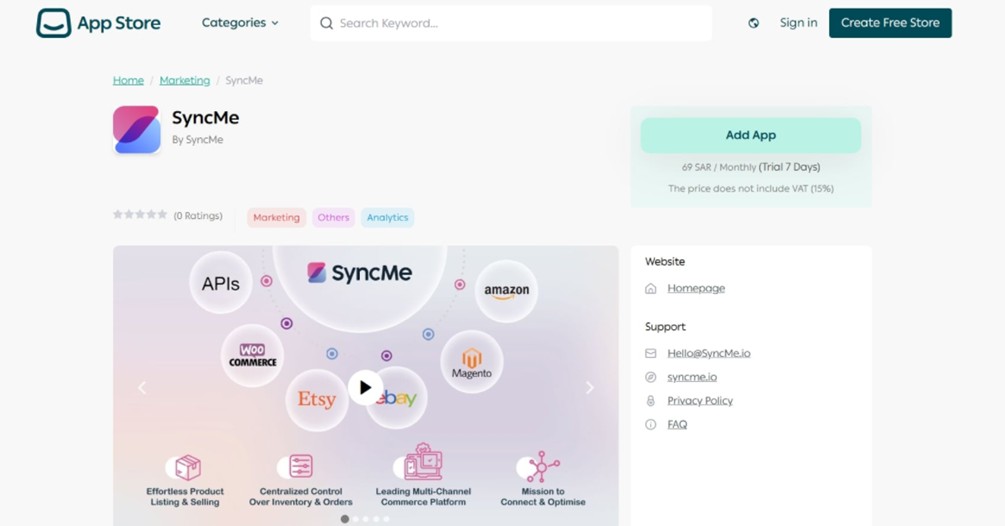
Step 3: Add the SyncMe app in the Salla App Store
On the SyncMe page in the Salla App Store, click Add App to start installing it on your Salla store.
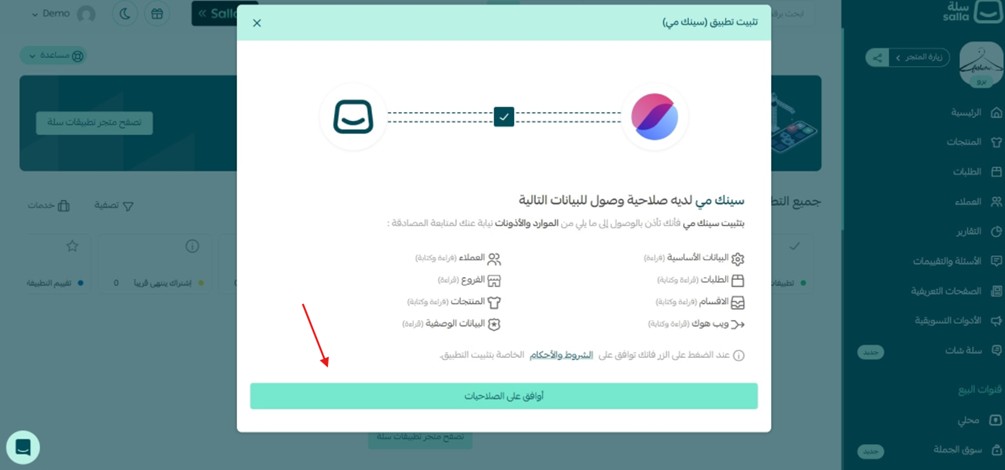
Step 4: Authorize permissions
Review the permissions the app requests, then click the authorization button to agree. This allows SyncMe to access the Salla data it needs.
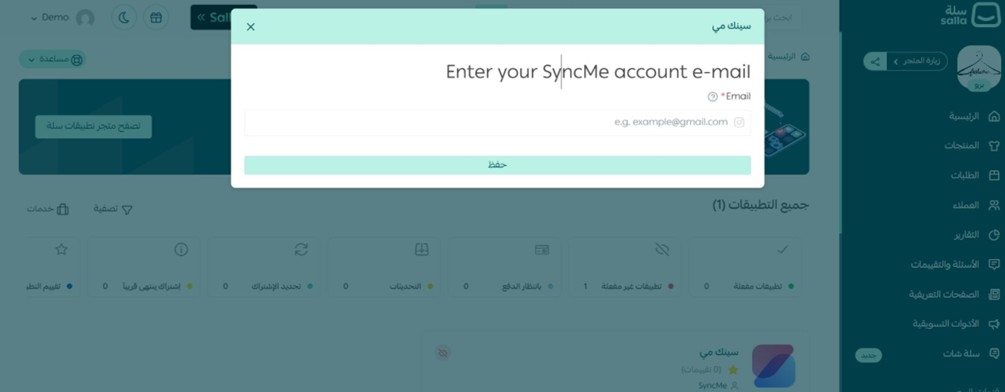
Step 5: Enter your SyncMe account email and save
Enter the email address of your SyncMe account, the one you will use to manage this channel, and click Save.
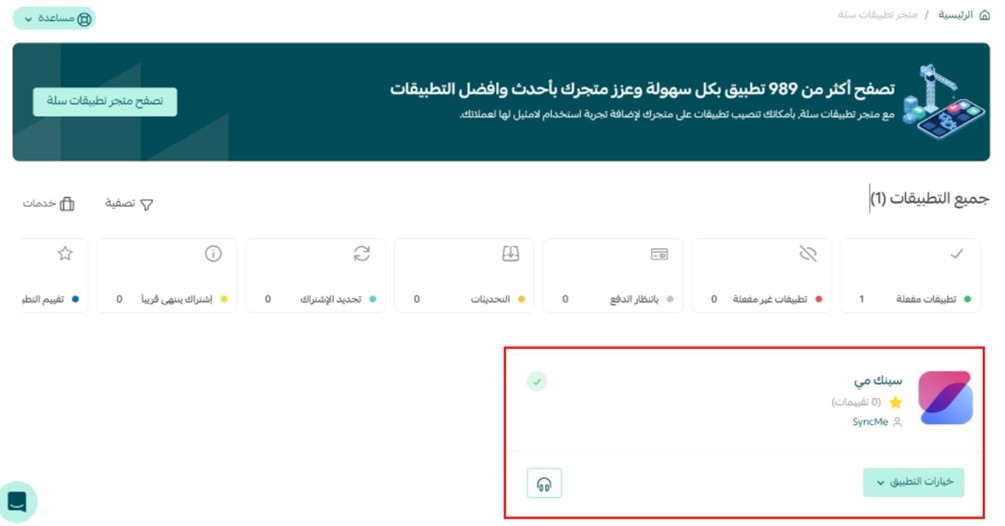
Step 6: Confirm the app is installed in Salla
Check that SyncMe appears in your Salla apps list and shows as installed or active.
Step 7: Return to SyncMe and verify the connection
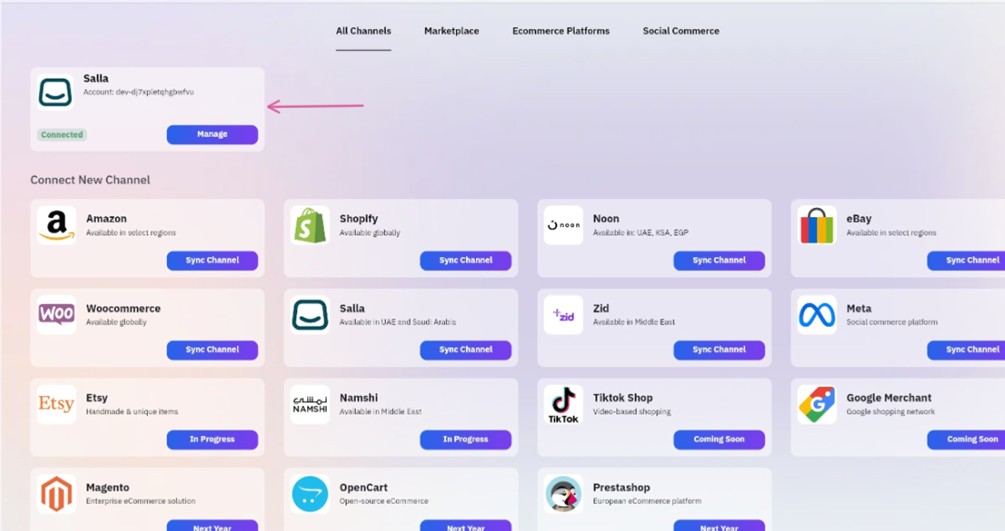
Open SyncMe again and check the Channels page. The Salla channel should show Connected, with your account listed.
What syncs between Salla and SyncMe
| Area | What the knowledge base says |
|---|---|
| Catalog import | Categories first, then products. You can search by name or SKU, import selected products or all of them. |
| Product matching | Match by SKU (recommended) or by product name, or import only products that match. |
| Stock quantity | When stock changes on one store, for example after an order, SyncMe can update linked products on your other channels. |
| Shared product details | Name, SKU, price and other supported fields can be updated from SyncMe if you choose that option. |
| Orders | Orders from connected stores appear in one Orders page. Status, address and payment method updates sync back to the store where supported. |
For the exact options, see Import Your Data and the Inventory Syncing Guide.
What to do after connecting
1. Import your products
Go to Sync Channels, click Manage on your Salla channel and open Import Salla Data. Import Category first, then Products. After the import, review the summary: Matched, Created and Unmatched variants.
2. Link the same products across channels
If you also sell on Noon, Amazon or another store, use the same SKU for the same product everywhere, including variant SKUs. That is what lets SyncMe link them.
3. Turn on inventory sync
From Products, Product List, click Sync on a product, pick the destination channel, choose how it matches, and choose the sync action, such as Update stock quantity. Syncing needs at least two connected channels.
Test with 3 to 5 products first, place a small test order, and check that stock updates on the other channel before you sync your whole catalog.
4. Check your billing route
If you subscribe through Salla, do not also subscribe directly in SyncMe, to avoid being charged twice. If you are unsure which subscription is active, check Recent Transactions and contact support with your workspace email and channel name. Details are in the Billing & Subscription Guide.
Troubleshooting
The channel shows Disconnected or not authorized
Inventory not syncing
Use one main stock source and sync outward to your other channels. It keeps quantities predictable.
A product fails to sync or cannot be created
Required fields are probably missing, such as category, price, images or variations. Fill them in your source store, make sure the product meets the destination channel requirements, and start the sync again.
More fixes are in the SyncMe Troubleshooting Guide.
Related guides
Connect Salla with Noon and Amazon: the full multi-channel setup.
How to prevent overselling: why stock goes out of sync and how to stop it.
Best Salla apps for 2026: other apps worth considering for your store.
FAQ
How do I connect my Salla store to SyncMe?
Open Sync Channels in SyncMe, choose Salla, click Install Salla App, add the SyncMe app in the Salla App Store, approve the permissions, enter your SyncMe account email and save. The channel then shows Connected in SyncMe.
Do I need to be the store owner?
You need a Salla account with Admin or Owner access, because installing the app and approving permissions requires it.
Which email do I enter in Step 5?
The email of your SyncMe account, the one you will use to manage this channel.
Can I try it before paying?
Yes. SyncMe offers a free trial with no credit card required.
Why is my stock not syncing to Noon or Amazon?
Usually the product is not linked across channels. Use matching SKUs, including variant SKUs, and confirm that every channel shows Connected.
Can I be billed twice through Salla and SyncMe?
It can happen if you subscribe in both places. If you subscribed through Salla, do not subscribe again directly in SyncMe, and contact support if you are unsure.
Where is the full documentation?
In the SyncMe knowledge base article Connecting Salla Store, linked at the top of this guide.
Full documentation: Connecting Salla Store.