To connect your Amazon seller account to SyncMe, you choose Amazon in Sync Channels, give the channel a nickname, select the marketplace region that matches your seller account, and approve access on Amazon. Once the channel shows Connected, you can import your listings, link them to the same products on Salla, Noon, Zid or Shopify by SKU, and keep stock in sync.
This guide follows our knowledge base step by step, with a screenshot for each step, then explains what syncs and how to fix the usual problems.
Full documentation: Connecting Amazon Store in the SyncMe knowledge base.
Before you start
Selecting the wrong region can cause authorization errors or missing data. Always choose the region that matches your Amazon seller account.
How to connect your Amazon seller account, step by step
Step 1: Select Amazon
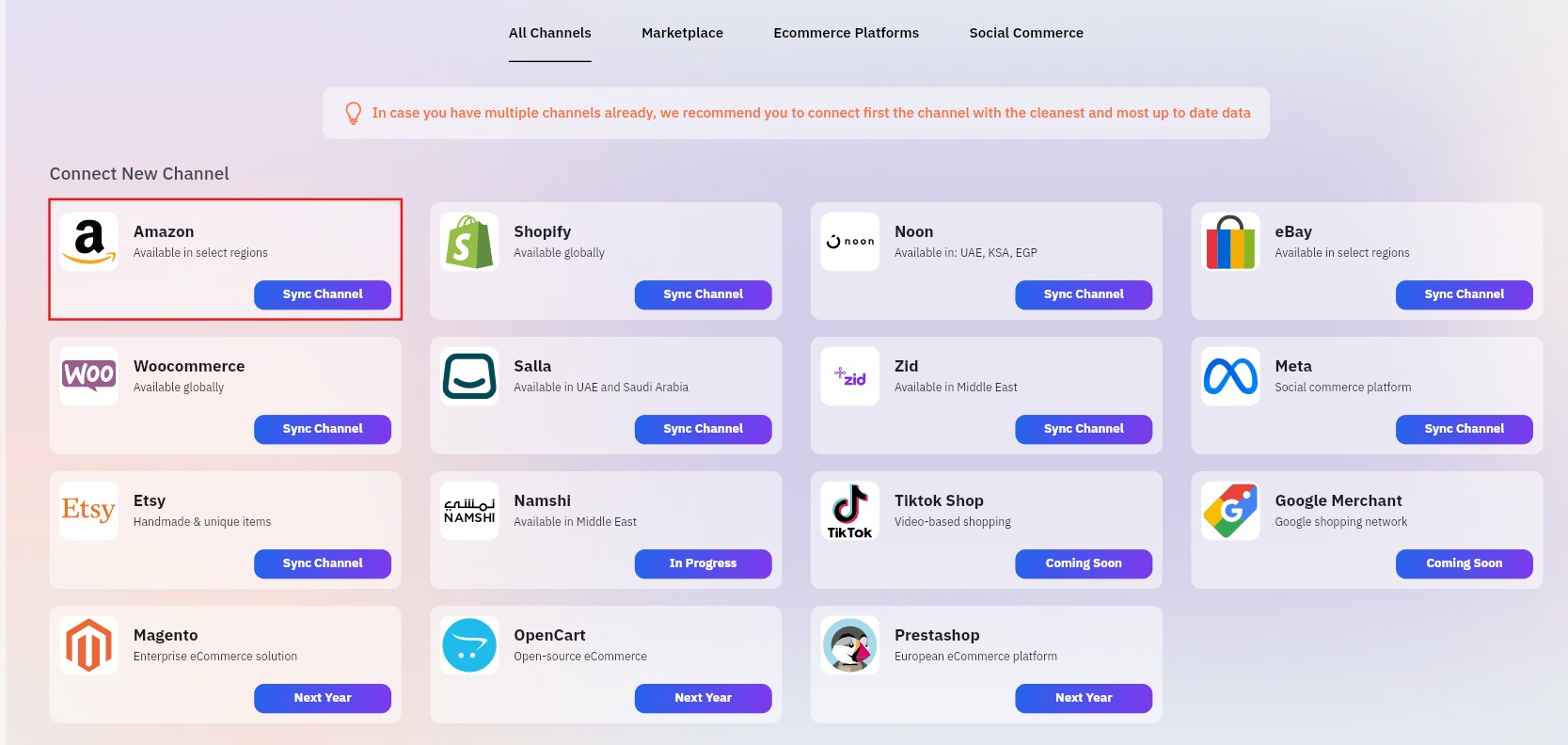
In SyncMe, open Sync Channels from the left menu, find Amazon and click Sync Channel.
Step 2: Enter the channel details
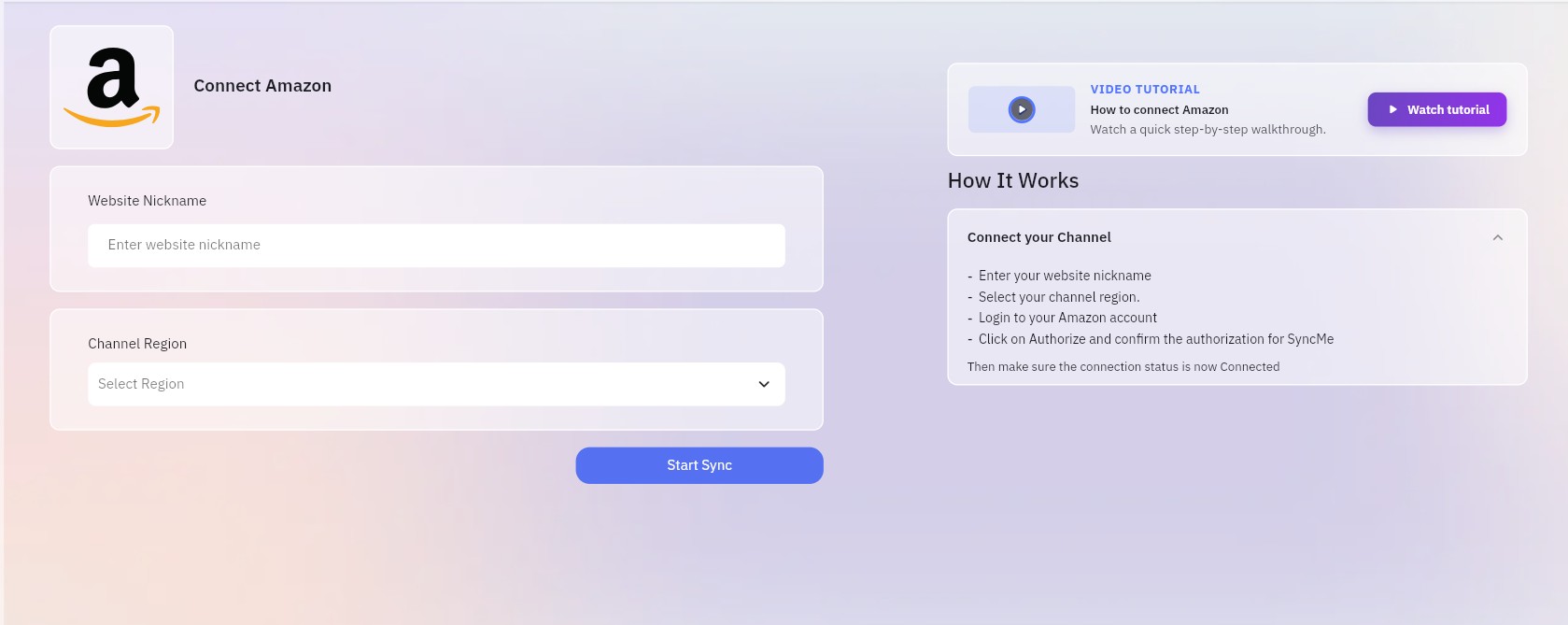
Fill in two fields, then click Start Sync to begin authorization:
Website Nickname: any name that helps you recognize this store inside SyncMe.
Channel Region: the Amazon marketplace region of your seller account.
Step 3: Authorize access on Amazon
You are redirected to the Amazon authorization page. Review the permissions, tick "I direct Amazon to provide SyncMe access", then click Confirm.
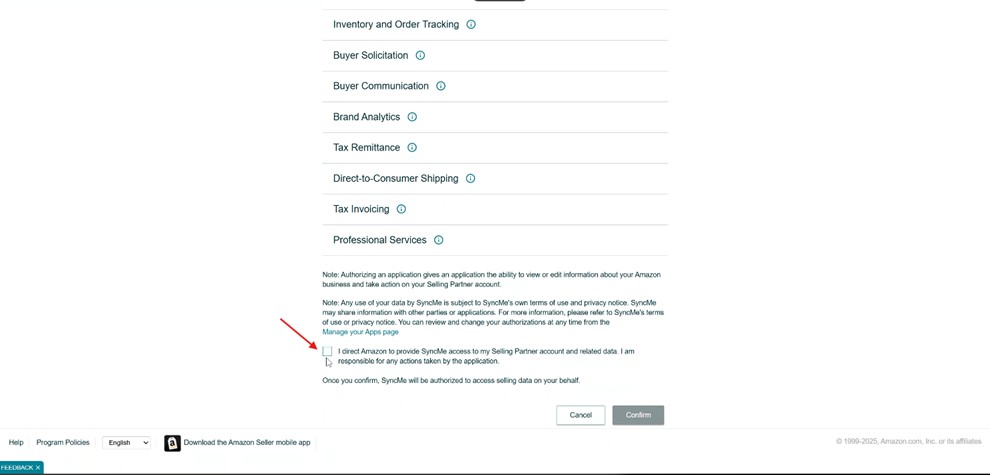
Step 4: Return to SyncMe
After confirming, go back to SyncMe and check that the Amazon channel status shows Connected.
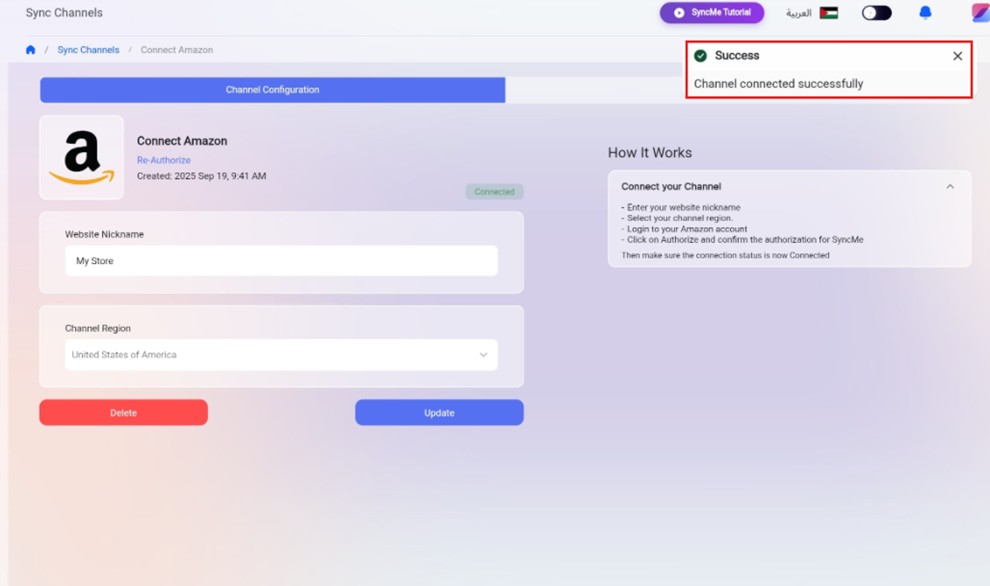
What syncs between Amazon and SyncMe
| Area | What the knowledge base says |
|---|---|
| Listings import | Import your Amazon products so they appear in the SyncMe Product List. |
| Product linking | Link the same product across channels using the same SKU, including variants. |
| Stock quantity | When a linked product sells on one channel, stock can be decreased on your other connected channels. |
| Orders | Amazon orders appear in Order Management with your other stores. Updates sync back to the original store where supported. |
See Import Your Data, the Inventory Syncing Guide and the Orders & Fulfillment Guide for every option.
What to do after connecting
1. Import your inventory
Open Sync Channels, click Manage on the Amazon channel and import your data. Then confirm that your products appear in the Product List.
2. Link matching products
Use the same SKU for the same product on Amazon and on your other channels, including variant SKUs. When you import, you can match by SKU or by product name.
3. Enable inventory sync
From the Product List, click Sync on a product, choose the destination channel, the matching method and the sync action, such as Update stock quantity. You need at least two connected channels.
4. Manage orders
Use Order Management to see Amazon orders alongside the rest, and update them from one place where Amazon allows it.
Before syncing your whole catalog, test with 3 to 5 products and one small order, and check that stock moves the way you expect.
Troubleshooting
Authorization error or the channel shows Disconnected
Products or data are missing
A wrong region can cause missing data. Reconnect with the correct region, then import again and check the Product List.
Inventory not syncing
I cannot update an order
Some channels limit edits depending on the order state. Update only the fields the platform allows for that order.
More fixes are in the SyncMe Troubleshooting Guide.
Related guides
How to sell on Amazon Saudi Arabia: registration, fees and fulfilment options.
Connect Salla with Noon and Amazon: run all three channels from one stock.
Book a demo if you want a walkthrough.
FAQ
How do I connect my Amazon seller account to SyncMe?
In SyncMe open Sync Channels, choose Amazon, enter a nickname and your marketplace region, click Start Sync, then tick "I direct Amazon to provide SyncMe access" on Amazon and click Confirm. The channel then shows Connected.
Which region should I choose?
The marketplace region of your Amazon seller account. A wrong region can cause authorization errors or missing data.
What is the Website Nickname for?
It is only a name to help you identify this store inside SyncMe. You can choose any name.
What happens after I connect?
Import your products, link them to the same products on your other channels by SKU, enable inventory sync, and manage orders from Order Management.
Why are my Amazon stock levels not updating?
The product is usually not linked across channels, or one channel is not connected. Check SKUs, including variant SKUs, and connection status.
Do I need another channel to sync stock?
Yes. Syncing between stores needs at least two connected channels, for example Amazon and Salla.
Where is the full documentation?
In the SyncMe knowledge base article Connecting Amazon Store, linked at the top of this guide.
Full documentation: Connecting Amazon Store.